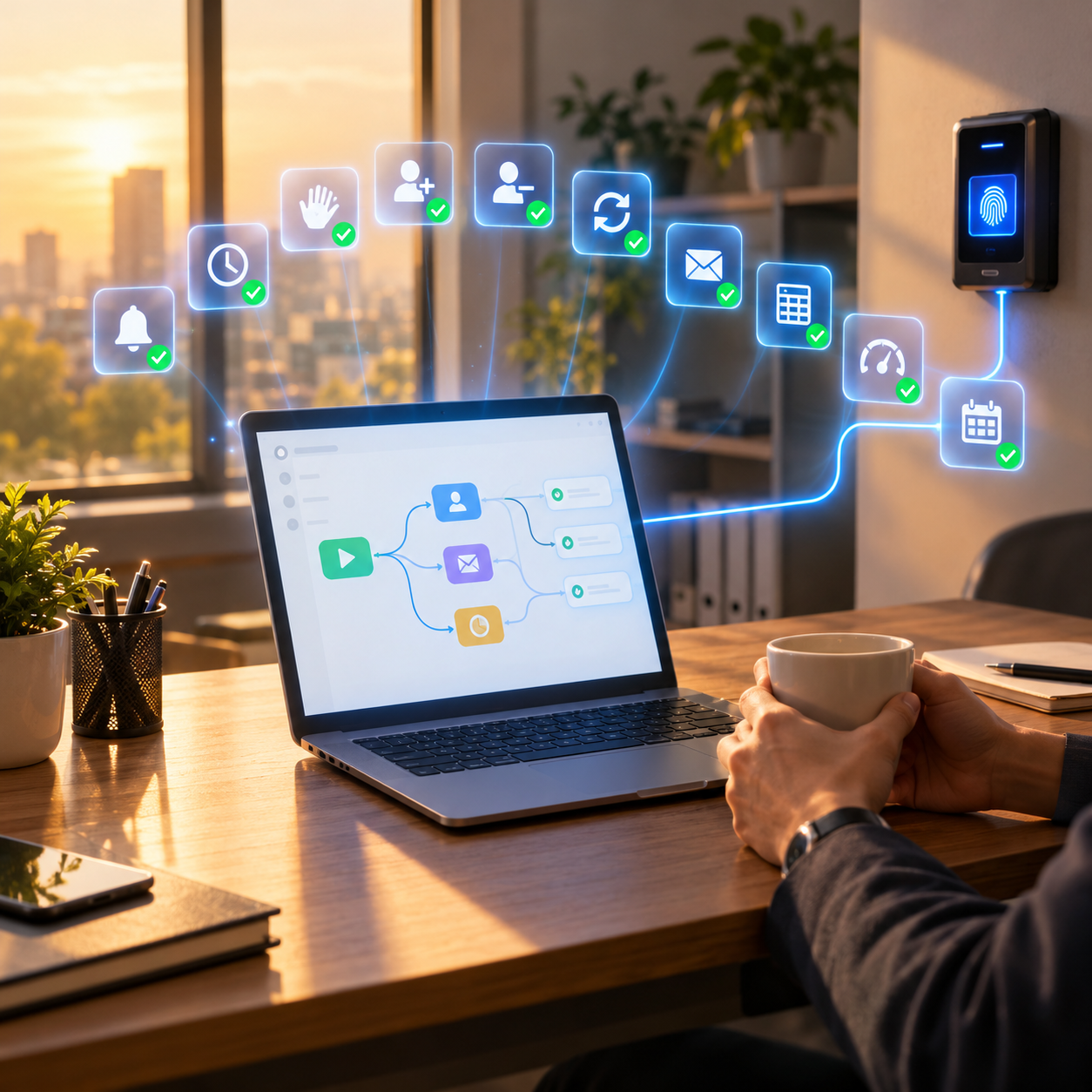
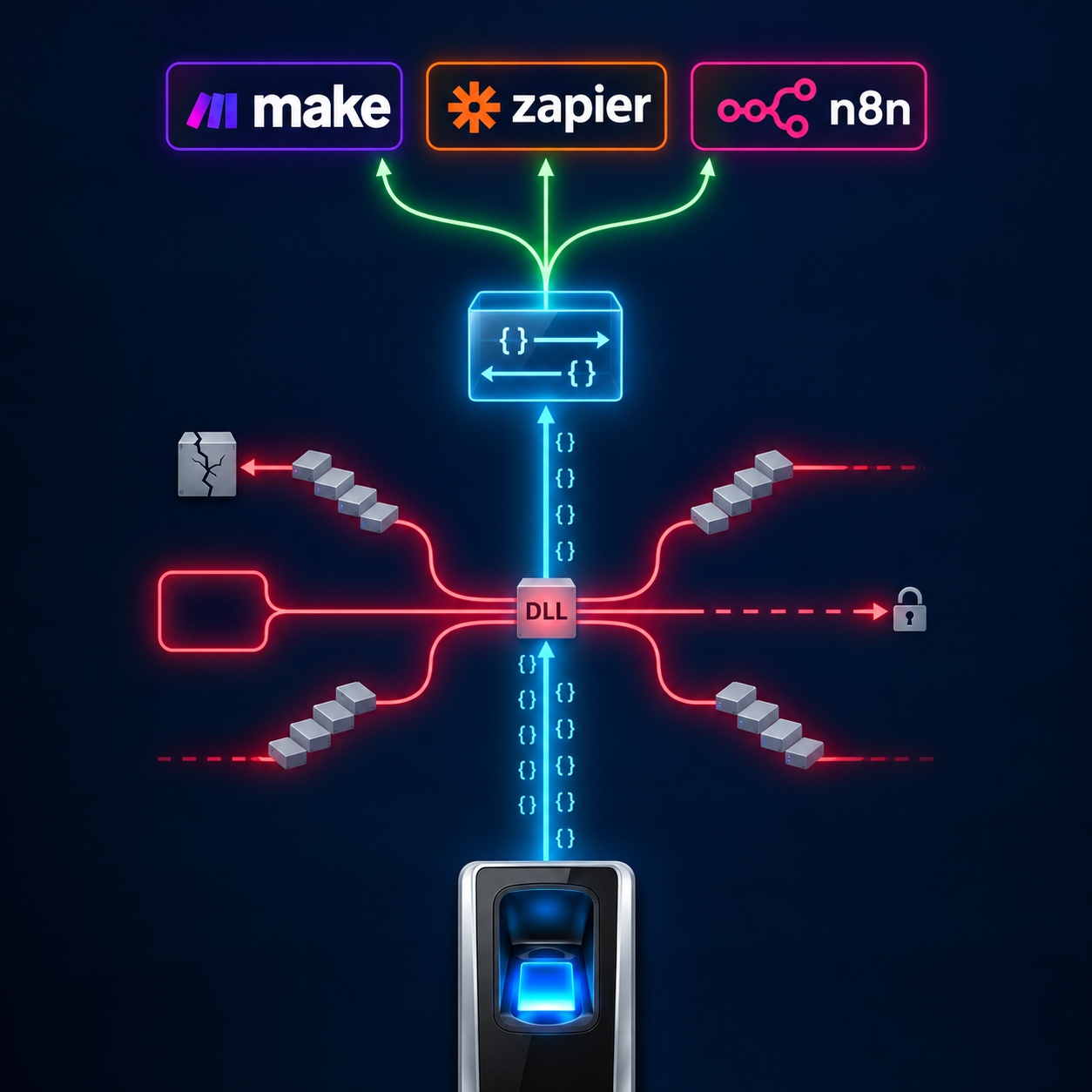
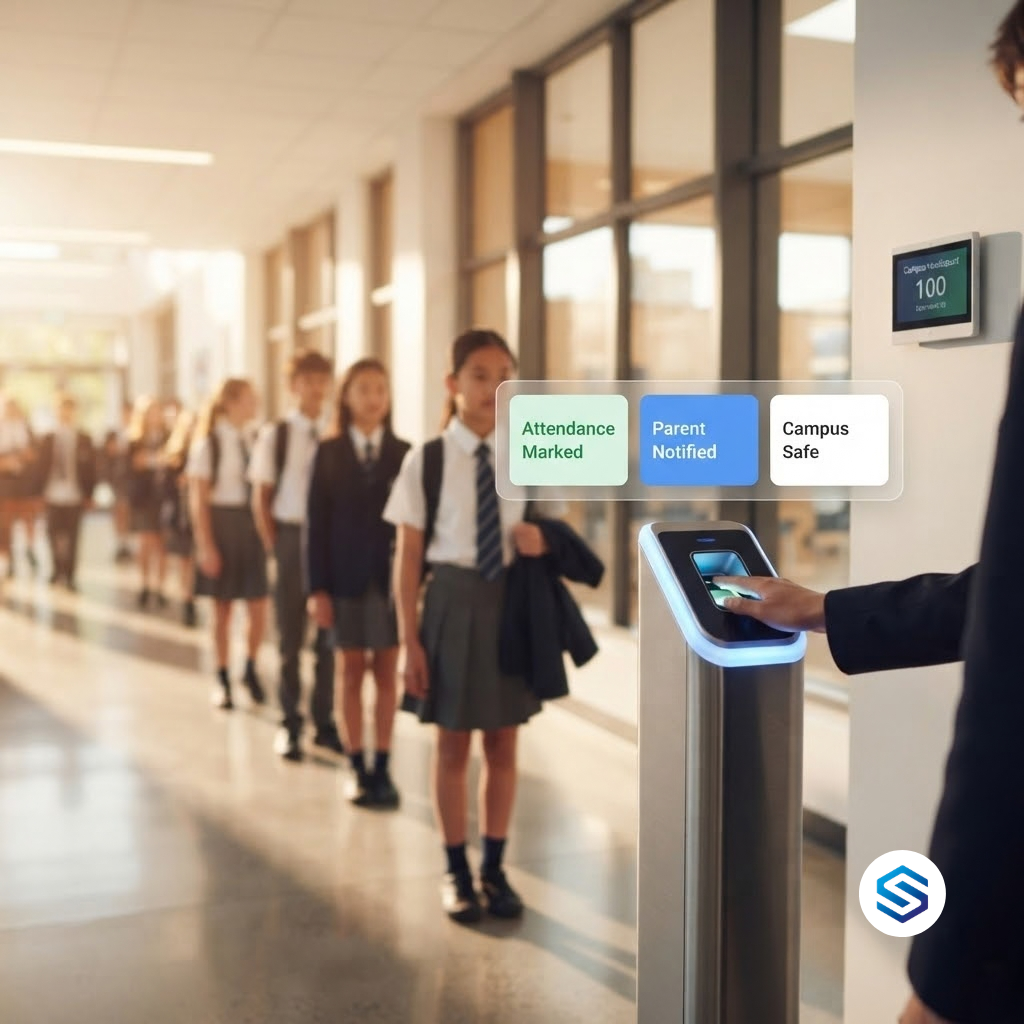
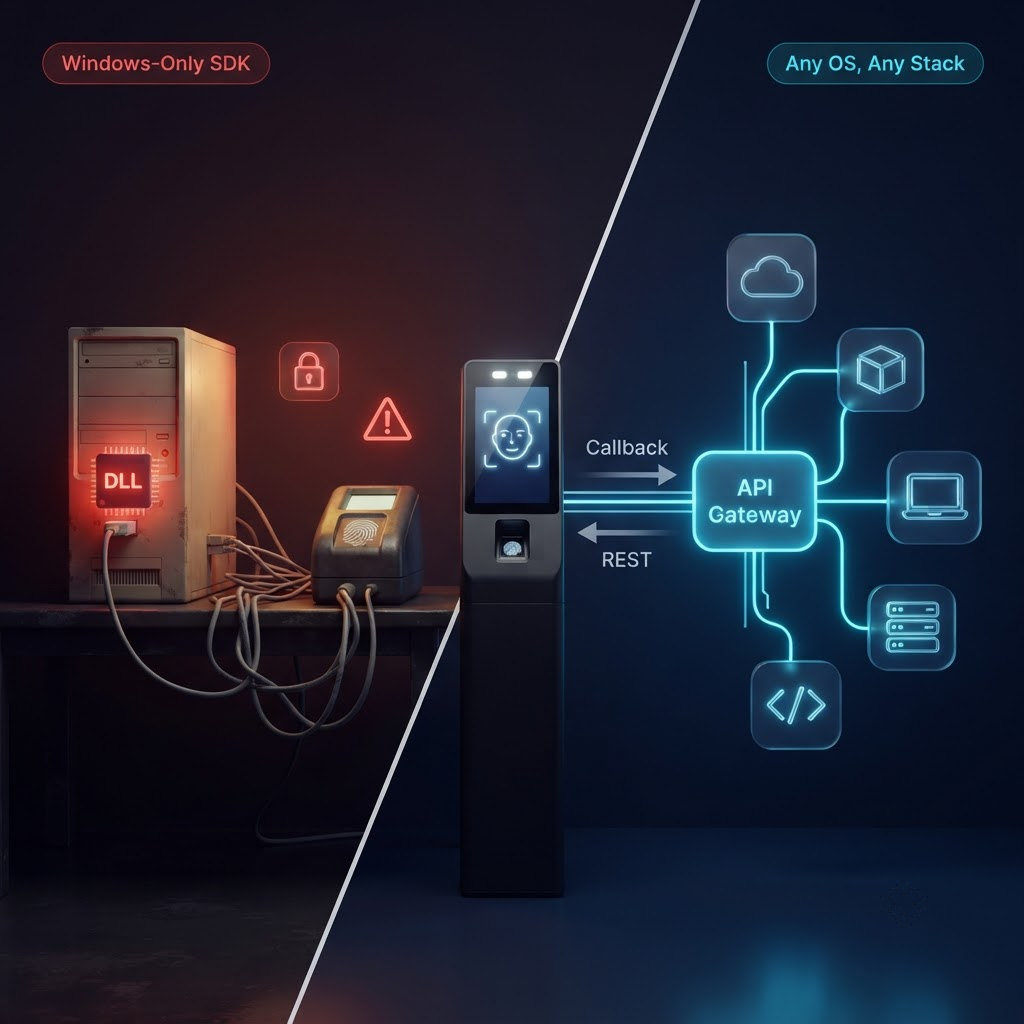
Most HR teams already have the two ingredients for powerful automation: biometric devices that record every arrival and departure, and an automation tool such as n8n, Make, or Zapier. What is usually missing is a connection between the two. Once your biometric attendance data flows into your automation tool in real time, a long list of repetitive HR tasks can run on their own. This guide walks through ten practical biometric HR automations, from late arrival notices to same-day offboarding, with the trigger, the steps, and the part Cams Biometrics plays in each one. Each is simple enough to build in an afternoon once the connection is in place.
Before You Start: The One-Time Setup
Every automation in this guide uses the same foundation. Set it up once, and each new automation becomes a matter of adding a few steps in your automation tool.
| Setup step |
What to do |
Why it matters |
| Connect your devices |
Connect your biometric devices to Cams Gateway. Cams devices and devices verified at developer.camsbiometrics.com use Native Push; non-verified devices use a Hybrid Push mode you choose |
This is what turns device scans into data your tools can use |
| Create a webhook |
Create an incoming webhook in n8n, Make, or your chosen tool, and set its URL as the Callback URL in Cams Gateway |
Every verified scan will now arrive in your tool in real time |
| Reply with done |
Configure the webhook to reply to the Gateway with the done status |
Cams Gateway expects this acknowledgement for every Callback |
| Match user IDs |
Use the same employee ID on the devices as in your HR system |
Every event can then be linked to the right person automatically |
| Name your devices clearly |
Give each device a meaningful LabelName, such as “Head Office Main Gate” |
Your automations can tell sites and doors apart |
Every scan then reaches your automation tool in this format:
|
Callback API, request your automation tool receives
{
  "RealTime": {
    "OperationID": "9nu1wak5616p",
    "LabelName": "Burj Khalifa",
    "SerialNumber": "ZHM11xxxxxxxx",
    "PunchLog": {
      "Type": "CheckOut",
      "Temperature": "36.8",
      "FaceMask": false,
      "InputType": "Fingerprint",
      "UserId": "2",
      "LogTime": "2020-09-17 07:48:22 GMT +0530"
    },
    "AuthToken": "COJJ7eiIPBGUfmIQPvh2PJWWDLX7OuKs",
    "Time": "2020-09-17 04:19:03 GMT +0000"
  }
}
|
|
Callback API, response your webhook must return
{ "status": "done" }
|
|
Who does what
Cams Gateway delivers verified scan events and carries out the device commands you send. Every notice, reminder, digest, and warning in this guide is created by your automation tool, based on the rules you set. The Gateway provides the trusted data. Your automation decides what to do with it.
|
|
Automation 01
Late Arrival Notice to the Team Lead
|
Easy |
| The problem |
Team leads often only find out someone is late when they notice an empty desk or station, by which point the shift is already disrupted. |
| Trigger |
A Callback event with Type CheckIn arrives after the person’s shift start time. |
| How it works |
| 1. |
Receive the Callback event and reply with done. |
| 2. |
Look up the person’s shift start time using their UserId. |
| 3. |
Compare LogTime with the shift start, allowing any grace period you use. |
| 4. |
If the person is late, send a short message to their team lead by email, Slack, Teams, or WhatsApp. |
|
| Cams part |
The Callback API provides the verified check-in time. Your automation applies the shift rules and sends the notice. |
|
|
Automation 02
Missing Check-Out Reminder
|
Easy |
| The problem |
People forget to scan out, leaving open records that HR has to chase and correct before payroll. |
| Trigger |
A scheduled run, for example 30 minutes after each shift ends. |
| How it works |
| 1. |
Collect the day’s Callback events, which your automation has stored as they arrived. |
| 2. |
Find everyone who has a CheckIn but no matching CheckOut. |
| 3. |
Send each of them a friendly reminder, and copy HR if the record is still open the next morning. |
|
| Cams part |
Callback events supply the check-in and check-out history. Your automation finds the gaps and sends the reminders. |
|
|
Automation 03
First-Scan Welcome for New Starters
|
Easy |
| The problem |
A new employee’s first morning is often a mix of waiting at reception and unanswered questions, while their manager does not know they have arrived. |
| Trigger |
The first ever Callback event for a UserId that belongs to a new starter. |
| How it works |
| 1. |
Receive the Callback event and check whether this is the person’s first recorded scan. |
| 2. |
Notify their manager and buddy that they have arrived. |
| 3. |
Send the new starter a welcome message with their first-day schedule and useful contacts. |
|
| Cams part |
The Callback API tells you the moment a new starter scans in for the first time. Your automation turns it into a warm welcome. |
|
|
Automation 04
New Starter Enrolment From Your HR System
|
Medium |
| The problem |
Someone has to manually register every new employee on each biometric device, which delays their access and is easy to forget. |
| Trigger |
A new employee record is created in your HR system. |
| How it works |
| 1. |
Your HR system notifies your automation tool that a new employee has been added. |
| 2. |
The automation builds an AddUserWithUserPhoto request with the employee ID, name, and profile photo. |
| 3. |
It sends the request to the Cams RESTful API and checks that the response status is done. |
| 4. |
It confirms back to HR that the employee is set up on the devices. |
|
| Cams part |
The RESTful API registers the user on the device, typically executing in around 15 seconds. |
|
|
RESTful API, AddUserWithUserPhoto request sent by your automation
{
  "Add": {
    "User": { "UserID": "100", "FirstName": "Manu", "LastName": "Mona", "UserType": "USER" },
    "Template": [{ "Type": "UserPhoto", "UserID": "100", "Data": "/9j/4AAQSkZJRgABAQAAAQABAAD..." }]
  },
  "OperationID": "1jxpjeoasu8wl",
  "AuthToken": "COJJ7eiiPBGUfmIQPvh2PJWWDLX7OuKs",
  "Time": "2020-09-17 11:09:09 GMT +0530"
}
|
The Data field holds the profile photo as a Base64-encoded JPEG, shortened here for readability. The UserID inside the Template must match the user’s UserID.
|
Automation 05
Same-Day Offboarding Across Every Device
|
Medium |
| The problem |
When someone leaves, their payroll record is closed but their biometric access often stays active until someone remembers to remove it. |
| Trigger |
An employee is marked as leaving in your HR system, or their last working day arrives. |
| How it works |
| 1. |
Your HR system notifies your automation tool of the departure. |
| 2. |
The automation calls the Cams RESTful API delete user operation for that UserId on every relevant device. |
| 3. |
It checks that each operation returns done, and records the result for your audit trail. |
| 4. |
It sends a confirmation to HR and the person’s manager that access has been removed. |
|
| Cams part |
The RESTful API removes the user from devices. Your automation makes sure it happens on time, every time. |
|
Deletes a specific user and all their biometric templates from the device.
|
Request
{
  "Delete": { "User": { "UserID": "User123" } },
  "OperationID": "1jxpjeoasu8wl",
  "AuthToken": "COJJ7eiiPBGUfmIQPvh2PJWWDLX7OuKs",
  "Time": "2020-09-11 16:15:31 GMT +0530"
}
|
|
Response
{ "Status": "done", "OperationID": "1jxpjeoasu8wl", "StatusCode": 0 }
|
|
Automation 06
New Site Sync With Resend All Users
|
Easy |
| The problem |
When a new office or site opens, every existing employee needs to be added to the new devices, which is slow and error-prone to do by hand. |
| Trigger |
New devices are installed and added to an existing device group in the Cams web portal. |
| How it works |
| 1. |
Group the new devices with the existing, fully enrolled device in the Cams web portal. |
| 2. |
Your automation, or a person, sends a single Resend All Users request. |
| 3. |
Cams Gateway pushes every user from the existing device to the other devices in the group. |
| 4. |
Your automation notifies the site manager that the new devices are ready. |
|
| Cams part |
Resend All Users synchronises users across all devices in the same device group with one request. |
|
|
RESTful API, Resend All Users request
{
  "OperationID": "j95xfejt3vr1",
  "Resend": { "User": "All" },
  "AuthToken": "COJJ7eiiPBGUfmIQPvh2PJWWDLX7OuKs",
  "Time": "2020-09-17 12:01:33 GMT +0530"
}
|
|
Automation 07
Daily Attendance Digest for Managers
|
Easy |
| The problem |
Managers want a quick picture of their team’s attendance, but nobody has time to build a report every evening. |
| Trigger |
A scheduled run each evening, or each morning for the previous day. |
| How it works |
| 1. |
Collect the day’s stored Callback events for each manager’s team. |
| 2. |
Count arrivals, late arrivals, absences, and open records without a check-out. |
| 3. |
Format a short summary and email or message it to each manager. |
|
| Cams part |
Callback events provide the verified attendance data. Your automation turns it into a readable daily summary. |
|
|
Automation 08
Attendance Log Straight Into Your HRMS or Sheet
|
Easy |
| The problem |
Attendance is exported from device software and uploaded by hand, so HR always works with data that is a day or a week old. |
| Trigger |
Every Callback event. |
| How it works |
| 1. |
Receive the Callback event and reply with done. |
| 2. |
Map UserId, Type, LogTime, LabelName, and InputType to the matching fields. |
| 3. |
Write the record into your HRMS through its API, or add a row to a shared spreadsheet. |
|
| Cams part |
The Callback API delivers each verified scan once, in a consistent JSON format, ready to be written anywhere. |
|
|
Automation 09
Overtime Early Warning
|
Medium |
| The problem |
Overtime is usually discovered at the end of the month in payroll, when it is too late to manage it. |
| Trigger |
Every CheckOut Callback event, or a scheduled check during the week. |
| How it works |
| 1. |
Add up each person’s verified hours for the week from their check-in and check-out times. |
| 2. |
Compare the total with their contracted hours or your overtime threshold. |
| 3. |
When someone is close to the threshold, warn their manager so they can adjust the schedule. |
|
| Cams part |
The Callback API provides accurate times. Your automation applies your overtime rules and sends the warning. |
|
|
Automation 10
Contractor Access Windows That Close Themselves
|
Medium |
| The problem |
Contractors are often added to devices for a project and then forgotten, keeping access long after the work has ended. |
| Trigger |
A contractor’s start date and end date, stored in your HR or project system. |
| How it works |
| 1. |
On the start date, your automation adds the contractor to the relevant devices through the RESTful API. |
| 2. |
Callback events record their verified time on site throughout the project. |
| 3. |
On the end date, the automation removes them from every device and sends a summary of their recorded hours. |
|
| Cams part |
The RESTful API adds and removes contractors. Your automation schedules both actions so access never outlives the contract. |
|
Sets a time-bound access window for a user. The user can only authenticate within the specified start–end range.
|
Request
{
  "Update": {
    "AccessTime": { "UserID": "20", "Start": "2022-07-11 00:00:00", "End": "2022-07-11 23:59:59" }
  },
  "OperationID": "1jxpjeoasu8wl",
  "AuthToken": "COJJ7eiiPBGUfmIQPvh2PJWWDLX7OuKs",
  "Time": "2020-09-11 16:39:29 GMT +0530"
}
|
|
Response
{ "Status": "done", "OperationID": "1jxpjeoasu8wl", "StatusCode": 0 }
|
All Ten at a Glance
| Automation |
Trigger |
Cams API used |
Difficulty |
| Late arrival notice |
Check-in after shift start |
Callback |
Easy |
| Missing check-out reminder |
Scheduled, after shift end |
Callback |
Easy |
| First-scan welcome |
First scan by a new starter |
Callback |
Easy |
| New starter enrolment |
New employee in HR system |
RESTful |
Medium |
| Same-day offboarding |
Employee leaving |
RESTful |
Medium |
| New site sync |
New devices in a group |
RESTful (Resend All Users) |
Easy |
| Daily digest |
Scheduled, each evening |
Callback |
Easy |
| Attendance log to HRMS or sheet |
Every scan |
Callback |
Easy |
| Overtime early warning |
Check-out or scheduled |
Callback |
Medium |
| Contractor access windows |
Start and end dates |
RESTful and Callback |
Medium |
Where to start
If you are building your first biometric HR automation, start with Automation 08. Getting every scan into your HRMS or a spreadsheet in real time is the foundation for almost everything else, and it shows the value of the connection immediately. Next, add Automation 05, same-day offboarding, because it closes a real security gap. After that, pick whichever automation saves your team the most time each week.
|
Keep a person in the loop for changes
Automations that only read and report, such as notices, digests, and logs, are low risk. Automations that change who can access your devices, such as enrolment and offboarding, deserve extra care. Log every change, check that each request returns done, and consider a quick human approval step until you are confident the workflow behaves as expected.
|
Frequently Asked Questions
|
Which automation tool should we use?
Any tool that can receive a webhook, reply to it, and make HTTP requests will work. n8n and Make can both return the done acknowledgement that Cams Gateway expects directly. If you use Zapier, you may need a small relay in front of it to send that reply. Our comparison of Make, Zapier, and n8n for biometric workflows covers the trade-offs in detail.
|
|
Do we need developers to build these?
The Easy automations can usually be built by a confident non-developer using a visual tool such as Make or n8n. The Medium ones involve connecting your HR system and calling the RESTful API, so a little technical help is useful the first time. Once one is built, the rest follow the same pattern.
|
|
Can the late arrival notice come directly from the biometric device?
The device and Cams Gateway verify the scan and deliver the event. The decision that someone is late, and the notice itself, come from your automation, because only your systems know each person’s shift and grace period. This keeps your rules in one place and easy to change.
|
|
What happens if a device goes offline?
Devices store records locally, and the Gateway’s offline cache and queue holds events during interruptions. When the connection returns, events are delivered with their original timestamps, so your automations still see accurate times. Scheduled automations, such as digests, should run after the data is expected to have arrived.
|
|
Is it safe to send attendance data through automation tools?
Callback events contain attendance details, not fingerprint templates, but they are still personal data. Use secure HTTPS endpoints, enable AES-256 encryption where needed, limit who can edit workflows, and review your automation tool’s data processing terms against your obligations under GDPR, CCPA/CPRA, LGPD, PDPA, and local law.
|
Conclusion: The Devices Already Do the Hard Part
Your biometric devices already capture the most reliable attendance data your organisation has: verified, timestamped proof of who arrived, when, and where. In most HR teams, that data sits in device software until someone exports it. Connect it to an automation tool, and the same data starts doing work on its own: warning team leads, reminding employees, welcoming new starters, closing access for leavers, and keeping payroll accurate.
None of the ten automations in this guide needs new hardware or a large project. Each one needs the same thing: a reliable, real-time connection between your biometric devices and the tools your HR team already uses.
Cams Biometrics Gateway is that connection. It connects devices from more than 15 brands to n8n, Make, Zapier, your HRMS, and any other system that works with JSON over HTTP/HTTPS. The Callback API pushes every verified scan in real time, and the RESTful API lets your automations add users with photos, remove leavers, and sync whole sites with Resend All Users. There is no SDK to install, optional AES-256 encryption is available, and native MCP integration means the same data can also work with Claude, Gemini, and ChatGPT. Explore the API at CamsBiometrics.com, read the documentation at developer.camsbiometrics.com, or talk to our team about your first automation.