





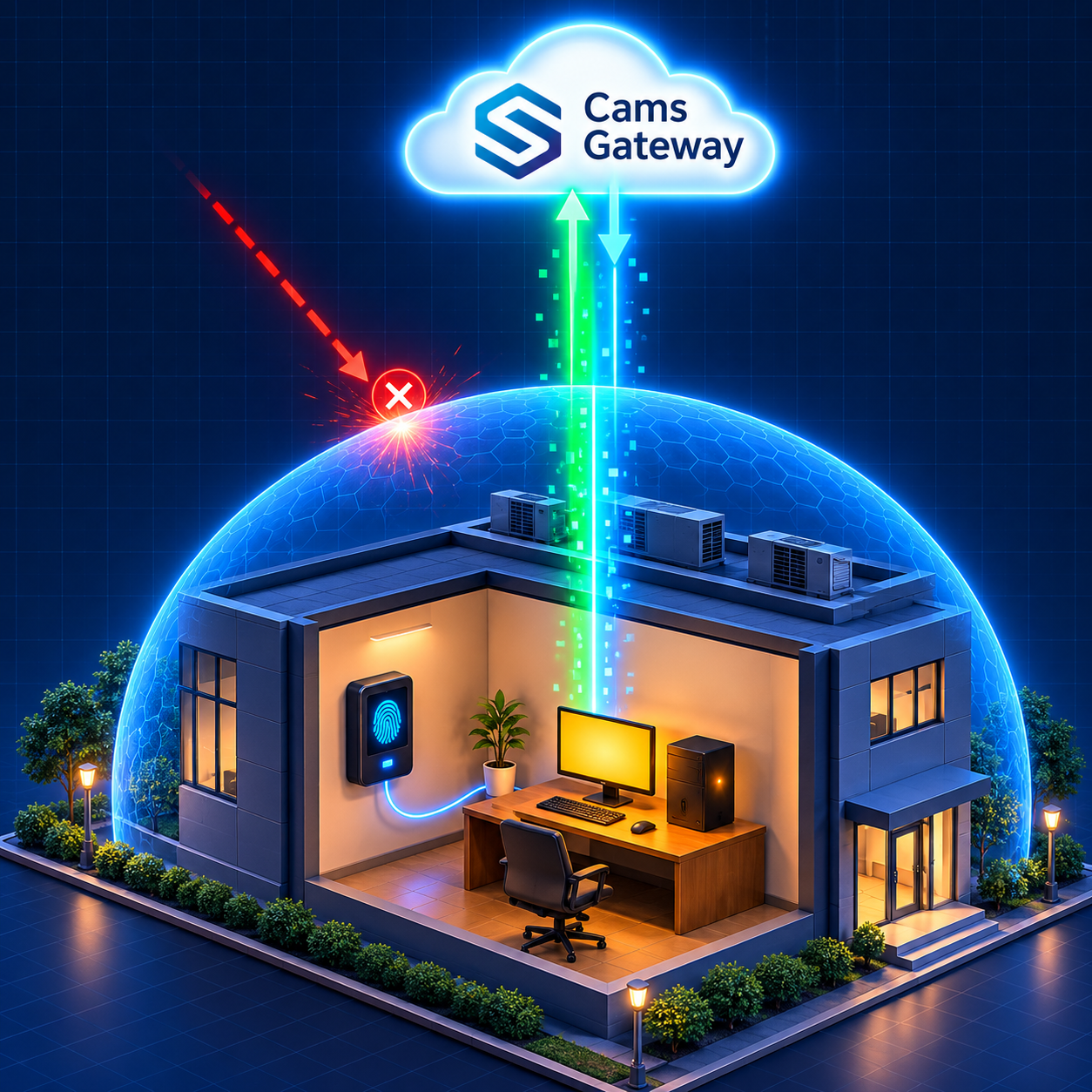
Many biometric integration projects stall on a question that has nothing to do with biometrics: how does the cloud reach a device sitting behind an office router? Plenty of sites have no public IP address, an IP that changes every day, or an IT team that will not open inbound ports in the firewall, and they are right to be cautious. The traditional answer, port forwarding, is fiddly and exposes the local network. Cams Biometrics solves this with the Hybrid Connector, a small piece of software that connects your site to the Gateway from the inside out. This guide explains why so many devices are hard to reach, how the Hybrid Connector works in plain terms, what you can do through it, and how to set it up.
01 · The Network Problem
Why So Many Biometric Devices Are Hard to Reach
A biometric device on a local network is like a house on a private road. People inside can drive out whenever they like, but nobody outside can drive in unless someone opens the gate. For a cloud platform to reach a device directly, the site needs a public address and a deliberate opening in the firewall that leads to the device. Many sites simply do not have that, for good reasons.
| Situation | What it means | Why direct access fails |
|---|---|---|
| No public IP | The internet provider shares one public address across many customers | There is no unique address that leads to your site |
| Changing IP address | The site’s public IP changes regularly | An address that works today may point somewhere else tomorrow |
| Strict firewall policy | IT does not allow inbound connections from the internet | The cloud cannot start a conversation with the device |
| Port forwarding not possible | The router is managed by a landlord, ISP, or head office | Nobody on site can open the gate |
| Security concerns | Opening ports exposes internal systems to the internet | Even if possible, many organisations will not accept the risk |
Retail branches, construction sites, warehouses, schools, and small offices all run into these limits. None of them is a reason to give up on cloud biometric integration. They are a reason to connect differently.
02 · Direct vs Indirect
Two Ways to Connect a Hybrid Push Device
Cams devices, and devices verified at developer.camsbiometrics.com, connect to the Gateway via Native Push, communicating with it directly over the internet. Other devices connect via Hybrid Push, and Hybrid Push offers two deployment topologies. The right one depends entirely on your site’s network.
| Direct topology | Indirect topology (Hybrid Connector) | |
|---|---|---|
| How it connects | The Gateway connects to the device, database, or files over the internet | A Hybrid Connector on a local computer connects outward to the Gateway |
| Public IP needed | Yes, on the site computer | No |
| Port forwarding needed | Yes | No |
| Software on site | None | The Hybrid Connector, on a local computer |
| Best for | Sites with a public IP and IT teams comfortable with port forwarding | Sites behind routers, strict firewalls, or without a public IP |
|
The easiest choice for most sites If you cannot set up a public IP and port forwarding, choose the Indirect topology with the Hybrid Connector. It avoids network configuration on the customer side entirely, which is why it is usually the easiest path to deploy. |
03 · Inside Out, Not Outside In
How the Hybrid Connector Works
The Hybrid Connector turns the network problem around. Instead of the cloud trying to get into your site, something inside your site reaches out to the cloud. Going back to the house on a private road: rather than asking someone to open the gate, a resident drives out and keeps a line of communication open from the outside world back to the house.
Without the Hybrid Connector
|
Cams Gateway Tries to reach the device from the internet |
→ |
Site router or firewall Blocks the incoming connection |
→ |
Device Never receives the request |
With the Hybrid Connector
|
Device, database, or file Stays on the local network |
→ |
Hybrid Connector Runs on a local computer and talks to the device locally |
→ |
Outbound connection The Connector reaches out to the Gateway |
→ |
Cams Gateway Exchanges data with your ERP/HRMS through that connection |
Because the connection starts from inside your network, it works the same way a web browser on that computer does. The site does not need a public IP, and the firewall does not need to accept any new inbound connection. The Hybrid Connector acts as the bridge between the local device, database, or files on one side and the Biometric Gateway on the other.
|
Port forwarding opens a door into your network. The Hybrid Connector keeps the door closed and makes the call from the inside. |
|
Check which ports to allow Outbound connections still have to be permitted by your firewall. Most networks already allow common outbound web traffic, but strict networks may restrict it. Check the Ports Supported section of the Cams Web API documentation and share it with your IT team before installing. |
04 · Features and Limits
What You Can Do Through the Hybrid Connector
The Hybrid Connector decides how your site connects. It does not decide what you can do. That is set by the communication method used to talk to the device, and there are three to choose from.
| Mode | Communication method | Callback API | RESTful API |
|---|---|---|---|
| Indirect Device | Device SDK | Full | Full, within SDK limits |
| Indirect DB | DB Pull from the device software’s local database | Attendance only | Not supported |
| Indirect File | File Processing of the device software’s attendance file | Attendance only | Not supported |
| Communication method | How it works |
|---|---|
| Device SDK | The Gateway communicates with the hardware through the manufacturer’s SDK, so every feature the SDK supports is available through the API. This is the best option for full API access |
| DB Pull | The Gateway reads new attendance records from the local database where the device software stores them, and pushes them to your Callback URL |
| File Processing | A designated attendance file on the local computer is watched continuously. Each time the device software updates it, new records are detected and pushed to your Callback URL in real time |
|
Topology and features are separate decisions Direct and Indirect topologies offer exactly the same features for the same communication method. Choose your communication method based on the API features you need, and choose your topology based on what your network allows. |
Even in Device SDK mode, a specific device model’s firmware or SDK may limit some operations. Always test with your actual hardware, and confirm edge cases with the Cams team.
05 · Step by Step
Setting Up the Hybrid Connector
The exact screens depend on your Cams account, but every Hybrid Connector setup follows the same path.
|
Choose the right local computer Pick a computer on the same local network as the device. For DB Pull or File Processing, it must be the computer where the device software stores its database or attendance file, because the Connector needs local access to them. |
|
|
Confirm outbound access Share the Ports Supported details from the Cams documentation with your IT team, and confirm that the computer can make the required outbound connections. |
|
|
Install the Hybrid Connector Install the Connector on that computer and link it to your Cams account, following the setup instructions for your account. |
|
|
Select the communication method Choose Device SDK if the Gateway supports your device’s SDK. Otherwise, choose DB Pull or File Processing for attendance data. |
|
|
Set your Callback URL Configure the HTTPS address of your receiver, HRMS, ERP, or automation tool as the Callback URL, so attendance events have somewhere to go. |
|
|
Test end to end Scan a fingerprint or face at the device, and confirm the event reaches your Callback URL. In Device SDK mode, also try a RESTful operation, such as adding a test user. |
Need a receiver to send events to? The Cams AI Code Generator Prompts can generate a complete callback receiver in Python, Node.js, PHP, and several other languages.
06 · Best Practices
Keeping the Connection Healthy
Once installed, the Hybrid Connector becomes part of your site’s infrastructure. A few simple habits keep it reliable.
| Practice | Why it matters |
|---|---|
| Use a computer that stays on | If the computer sleeps or shuts down, the connection between the site and the Gateway pauses |
| Disable sleep and hibernation | Power-saving settings are the most common cause of quiet disconnections |
| Start the Connector automatically | After a restart or power cut, the connection should come back without anyone logging in |
| Protect against power cuts | A small UPS keeps the computer and network running through short outages |
| Keep the computer updated and secure | It sits on your network, so treat it like any other managed machine |
| Watch for gaps in events | If a busy site suddenly sends no events, check the computer and its connection first |
|
What happens when the connection drops Attendance is recorded on the device, and the Gateway’s offline cache and queue is designed to handle interruptions. When the connection returns, records are delivered with their original timestamps, so scans made during an outage still appear at the correct time. For DB Pull and File Processing, records stay in the device software’s database or file until the Connector reads them. |
Frequently Asked Questions
|
Do Cams devices need the Hybrid Connector? No. Cams devices and devices verified at developer.camsbiometrics.com connect via Native Push, communicating directly with the Gateway over the internet. The Hybrid Connector is used for Hybrid Push devices. |
|
Is the Hybrid Connector more secure than port forwarding? It avoids opening inbound ports to your local network, which removes a common source of risk. Communication runs over HTTP/HTTPS with auth token validation, and optional AES-256 encryption is available. |
|
Our site’s IP address changes every day. Will that cause problems? Not with the Indirect topology. Because the Hybrid Connector connects outward to the Gateway, your site does not need a fixed or public IP address. |
|
Can I still add and remove users through the Hybrid Connector? Yes, in Device SDK mode, within the limits of the device’s SDK. DB Pull and File Processing support attendance callbacks only, with no RESTful operations. |
|
Does the Hybrid Connector work with my HRMS or ERP? Yes. The Connector handles the connection between your site and the Gateway. Your HRMS, ERP, or automation tool receives events through the Callback API in exactly the same way as with any other connection mode. |
Conclusion: The Network Should Not Decide Your Integration
For years, the network at the device’s location quietly decided which biometric integrations were possible. No public IP meant no cloud connection. A strict firewall meant a long negotiation with IT. A changing IP address meant integrations that broke without warning.
The Hybrid Connector removes that constraint. By connecting from the inside out, it lets devices behind ordinary office routers, strict firewalls, and shared internet connections take part in the same real-time integrations as any other device, without opening a single inbound port.
Cams Biometrics Gateway brings devices online wherever they are. Native Push connects Cams and verified devices directly. Hybrid Push connects other brands through Device SDK, DB Pull, or File Processing, using either a Direct topology or the Hybrid Connector when no public IP is available. Every event reaches your systems through the same Callback API, with auth token validation and optional AES-256 encryption. Explore the platform at CamsBiometrics.com, read the full documentation, including connection modes and supported ports, at developer.camsbiometrics.com, and generate your receiver with the AI Code Generator Prompts.