




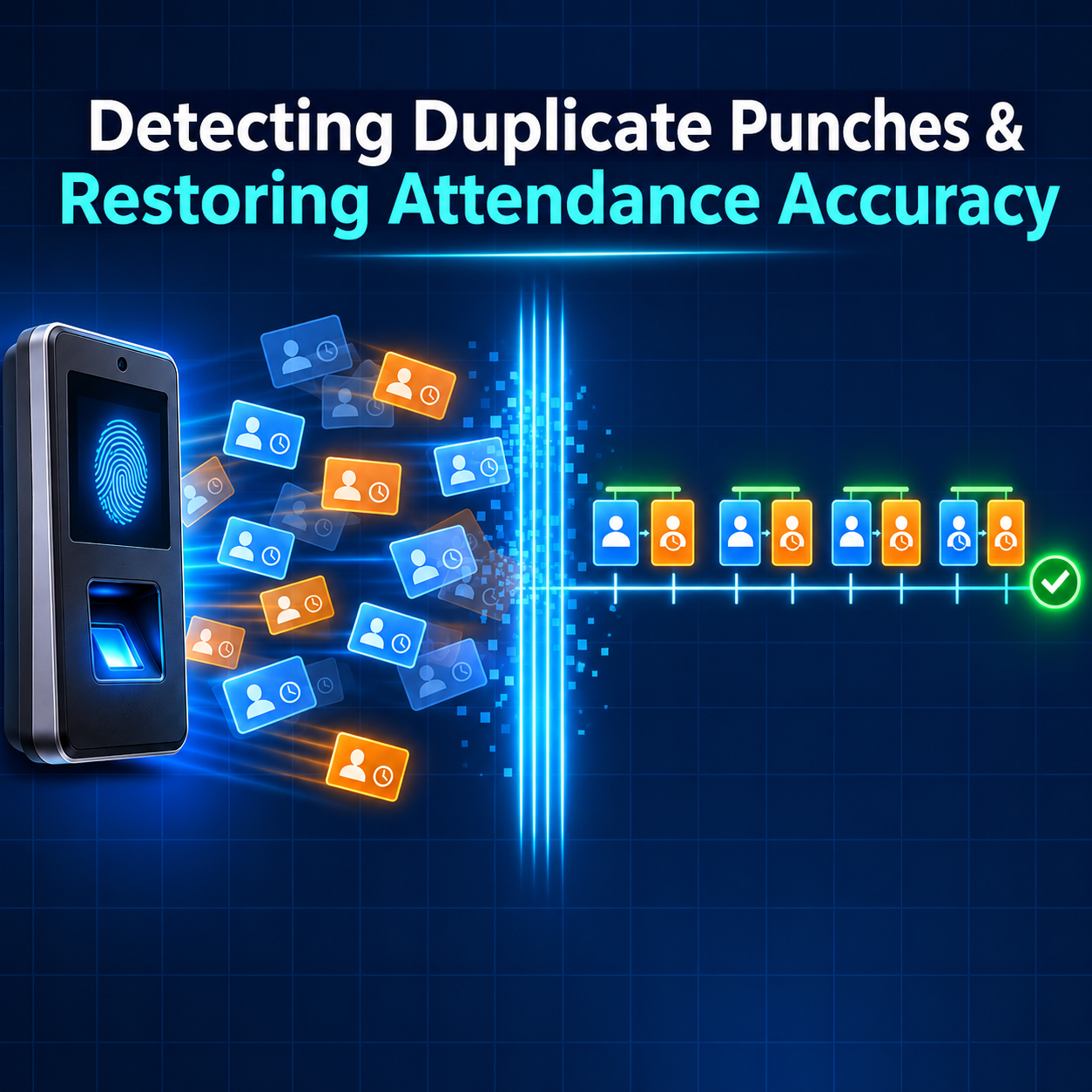
Real-time biometric attendance sounds simple: someone scans, your system receives an event, and you save it. In practice, attendance data is messier. The same event can arrive twice. An employee can tap the scanner two times in a row. A device that lost its connection can send a morning check-out in the afternoon. Someone can press the wrong check-in button. If your system saves every event exactly as it arrives, these small issues turn into wrong worked hours, payroll disputes, and reports nobody trusts. This guide explains the different kinds of duplicate and out-of-order punch events, why they happen, and a clear set of rules, built on OperationID and LogTime, that keeps your attendance records clean.
01 · The Problem
Why Clean Attendance Data Is Harder Than It Looks
Attendance events come from physical devices, scattered across sites, used by real people, connected over networks that sometimes drop. Each of those facts introduces a way for the data to arrive imperfectly. None of them is a fault in the biometric system. They are simply what happens when the physical world meets software.
The good news is that every punch event from Cams Biometrics Gateway carries the information you need to clean it up. Two fields do most of the work:
| Field | What it is | What it lets you do |
|---|---|---|
| OperationID | A unique reference for each event the Gateway sends | Recognise the exact same event if it arrives more than once |
| LogTime | The time the person actually scanned, with the device’s time zone offset | Put events in the true order they happened, whenever they arrive |
Three more fields help with the harder cases: UserId identifies the person, SerialNumber identifies the device, and Type says whether the person pressed check-in or check-out.
|
A punch event from the Callback API {
"RealTime": {
"OperationID": "9nu1wak5616p",
"LabelName": "Burj Khalifa",
"SerialNumber": "ZHM11xxxxxxxx",
"PunchLog": {
"Type": "CheckOut",
"Temperature": "36.8",
"FaceMask": false,
"InputType": "Fingerprint",
"UserId": "2",
"LogTime": "2020-09-17 07:48:22 GMT +0530"
},
"AuthToken": "COJJ7eiIPBGUfmIQPvh2PJWWDLX7OuKs",
"Time": "2020-09-17 04:19:03 GMT +0000"
}
}
|
02 · Not All Duplicates Are the Same
Four Kinds of Duplicate Punch Events
The most common mistake is treating every duplicate the same way. There are four different kinds, and each one needs a different fix. Some are technical, and some come from how people use the devices.
| Kind of duplicate | What it looks like | How to recognise it | What to do |
|---|---|---|---|
| Redelivered event | The exact same event arrives twice | Same OperationID | Ignore the second copy, but still reply with done |
| Overlapping import | An event received by callback is imported again during a reconciliation | Same UserId, LogTime, and SerialNumber, from a different source | Ignore the second copy |
| Double scan | A person taps the scanner twice within seconds | Different OperationIDs, same person, LogTimes very close together | Treat as one punch, using a minimum-gap rule |
| Mislabelled punch | A person presses check-in when they meant check-out | Two check-ins in a row with no check-out between them | Apply a pairing rule when calculating hours |
|
Technical duplicates versus human duplicates The first two kinds are technical: they are the same scan seen twice by your system, and they should simply be ignored. The last two are human: they are real, separate scans, and deciding what they mean is a business rule. Keep the two kinds of handling separate. Your receiver should only remove technical duplicates. Your attendance logic should decide what human duplicates mean. |
Why redelivery happens
A callback is a conversation: the Gateway sends an event, and your server replies with the done acknowledgement. If the reply never arrives, because your server was slow, restarted, or briefly unreachable, the event may be sent again. Your server may have already saved the first copy. That is why the rule is always the same: if you have already seen an OperationID, do not save it again, but do reply with done so the Gateway knows the event arrived. Confirm the exact redelivery behaviour for your setup in the Cams Web API documentation.
|
The reply your receiver sends for every event, including duplicates { "status": "done" }
|
03 · Arrival Order Is Not Real Order
Why Punch Events Arrive Out of Order
Your server receives events in arrival order. Attendance must be calculated in scan order. Most of the time these are the same. Sometimes they are not.
| Cause | What happens | Example |
|---|---|---|
| Device or site goes offline | Devices keep recording scans locally, then send them all when the connection returns | A 13:01 check-out arrives at 13:41, after a 13:35 scan from another device |
| Network delays | Events from different devices travel different routes and take different times | Two scans one second apart arrive in reverse order |
| Several devices per person | An employee checks in at the main gate and checks out at a side door | Events from two devices interleave unpredictably |
| Reconciliation imports | Missing events are filled in later from device logs | An event from Monday is added to your system on Tuesday |
The payload already tells you the difference. LogTime is when the scan happened. Time is the timestamp of the message itself, in GMT. In the sample payload above, the scan happened at 07:48 local time, but the message was sent at 04:19 GMT, which is 09:49 in the same time zone, two hours later. That gap is exactly what an offline period looks like. If you sorted by arrival, that scan would land in the wrong place.
|
Arrival time tells you when your server found out. LogTime tells you when it happened. Attendance must always follow LogTime. |
04 · Eight Rules
The Clean Attendance Data Playbook
These eight rules handle every case above. The first four belong in your callback receiver and storage. The last four belong in the logic that turns stored events into attendance.
|
Store every raw event first Save each payload exactly as received before doing anything else with it. If a rule later turns out to be wrong, you can reprocess from the raw data. |
|
|
Ignore repeated OperationIDs Make OperationID unique in your storage. If the same OperationID arrives again, skip saving it and still reply with done. |
|
|
Use a natural key for imports For events imported during reconciliation, treat the combination of UserId, LogTime, and SerialNumber as the identity of the scan, so the same scan is never stored twice from two sources. |
|
|
Order by LogTime, never by arrival Parse LogTime with its time zone offset, and always sort by it when calculating attendance. |
|
|
Calculate late, not on arrival Do not finalise a day’s hours the moment a check-out arrives. Recalculate when late events arrive, and only lock a day after a settling window, such as before payroll runs. |
|
|
Merge double scans with a minimum gap Treat scans by the same person within a short window, for example two minutes, as a single punch. Choose a window that suits your workplace. |
|
|
Pair punches with a clear rule Decide how to handle mislabelled punches, such as pairing scans in time order, or using the first scan as arrival and the last as departure. Apply the same rule everywhere. |
|
|
Keep a record of every correction When a rule merges, ignores, or relabels a scan, record what happened and why. HR and auditors need to see how raw scans became worked hours. |
|
Keep device clocks accurate LogTime comes from the device’s clock. If a device’s time is wrong, every scan on it is wrong, and no amount of sorting will fix that. Make sure each device has the correct date, time, and time zone, and check them after power cuts or firmware updates. |
05 · Putting the Rules Together
A Worked Example: One Employee, One Messy Day
Here is a realistic day for employee 2 at the Burj Khalifa site, shown in the order the events reached the server. The site lost its connection for part of the day.
| Arrived | OperationID | Type | LogTime | What the rules do |
|---|---|---|---|---|
| 09:02 | op-1001 | CheckIn | 08:58 | Saved |
| 09:03 | op-1001 | CheckIn | 08:58 | Same OperationID: ignored, done sent |
| 09:04 | op-1002 | CheckIn | 08:59 | Within two minutes of 08:58: merged as a double scan |
| 13:40 | op-1004 | CheckIn | 13:35 | Saved |
| 13:41 | op-1003 | CheckOut | 13:01 | Arrived late from offline period: placed before 13:35 by LogTime |
| 18:05 | op-1005 | CheckIn | 18:04 | Second check-in in a row: paired as the day’s final check-out |
Sorted by LogTime and cleaned up, the day becomes two clear work periods:
| Period | Start | End | Duration |
|---|---|---|---|
| Morning | 08:58 | 13:01 | 4 hours 3 minutes |
| Afternoon | 13:35 | 18:04 | 4 hours 29 minutes |
| Total worked | 8 hours 32 minutes |
Without the rules, the same raw events could have produced three check-ins in the morning, a check-out appearing after an afternoon check-in, and no check-out at the end of the day. Payroll would have flagged errors or, worse, calculated the wrong hours without anyone noticing.
06 · Built for Clean Data
How Cams Gateway Helps You Keep Records Clean
Clean attendance data starts with events that carry the right information. Cams Biometrics Gateway is designed so every event your system receives can be identified, ordered, and traced.
| Cams capability | How it helps |
|---|---|
| OperationID on every event | Gives your system a reliable way to recognise and ignore redelivered events |
| LogTime with time zone offset | Lets you put events in their true order, wherever and whenever they arrive |
| UserId, SerialNumber, and LabelName | Identify the person, device, and site, which together form a natural key for imports |
| Offline cache and queue | Holds events during connectivity interruptions and delivers them with their original timestamps |
| The done acknowledgement | Gives a clear signal that each event arrived, so delivery can be confirmed |
| RESTful operations to load logs | Let you fetch device logs on demand to reconcile and fill any gaps |
| AI Code Generator Prompts | Generate a callback receiver that validates tokens and logs every event, ready for you to add the rules in this guide |
|
Who does what Cams Gateway delivers each verified scan with the information needed to clean it up. Removing technical duplicates belongs in your callback receiver. Merging double scans, pairing punches, and calculating hours belong in your HRMS, payroll, or attendance logic, where your business rules already live. |
Frequently Asked Questions
|
Should my receiver reject duplicate events with an error? No. Reply with done for duplicates too. The event did arrive safely, and an error reply may cause it to be sent again. Simply skip saving it. |
|
Can I use LogTime alone to detect duplicates? Not on its own. Two different people can scan at the same second. Use OperationID for redelivered events, and the combination of UserId, LogTime, and SerialNumber for imports. |
|
How long should the double-scan window be? Long enough to catch accidental repeat taps, short enough not to merge genuine separate punches. A window of one to two minutes suits most workplaces, but choose what fits your shifts and site layout. |
|
When should a day’s attendance be locked? After a settling window that allows delayed events to arrive, for example the next morning or just before payroll runs. Until then, recalculate whenever new events arrive for that day. |
|
Does this apply to face, card, and PIN scans too? Yes. Every input type arrives in the same event format, with the same OperationID and LogTime fields, so the same rules apply regardless of how the person verified. |
Conclusion: Trust Comes From Rules, Not Luck
Duplicate and out-of-order punch events are not rare edge cases. They are a normal part of running biometric attendance across real devices, real networks, and real people. The difference between attendance data that HR trusts and data that causes disputes is not luck. It is a small set of clear rules, applied consistently.
Ignore repeated OperationIDs. Order everything by LogTime. Treat human duplicates as business rules, not technical errors. Calculate late, record every correction, and keep device clocks accurate. With those rules in place, every verified scan becomes a reliable record.
Cams Biometrics Gateway gives you the data to make those rules work. Every Callback event carries an OperationID, a LogTime with its time zone offset, and the user, device, and site details needed to identify each scan, from devices across more than 15 brands. Offline cache and queue protects events during interruptions, and RESTful operations let you reconcile against device logs whenever you need to. Explore the platform at CamsBiometrics.com, read the full Web API documentation at developer.camsbiometrics.com, and generate your callback receiver with the AI Code Generator Prompts.