





In most organizations, adding a new employee to the biometric access system means someone has to physically walk to each device, log into management software, and type in the employee details by hand. If you have one office and ten employees, that is manageable. If you have 50 locations and 1,000 employees, it becomes an operation that takes months and costs more than most organizations realize. This guide explains what zero-touch deployment is, why it matters, and how it works, in plain language that does not require a technical background to understand.
The Hidden Cost of Doing This the Old Way
Most organizations accept a slow, manual process for biometric deployment because they have never sat down and calculated what it actually costs in time. The numbers are more uncomfortable than most people expect.
3 minutes
3 devices
150,000
450,000 minutes
937 days
3.7 years
Even with a team of people working in parallel, the manual process for a deployment of this scale is measured in weeks, not hours. And every day of delay is a day during which those 1,000 employees either cannot access their designated locations or are walking in without their biometric records being present on the device.
The bottleneck is not the biometric hardware. The device itself can enrol a user in under two seconds once it receives the instruction. The bottleneck is the instruction delivery mechanism. Manual processes deliver instructions at human speed. An API delivers them at computer speed.
“A fingerprint reader can add a new person to its memory in under two seconds. The only reason large deployments take months is that humans have been delivering those instructions one at a time. When a computer delivers them instead, the whole calculation changes.”
What Zero-Touch Deployment Actually Means
Zero-touch deployment means that employee records are added to biometric devices automatically, through software, without anyone needing to walk up to a device and operate it manually.
The “zero-touch” part refers specifically to the devices. People are still involved at the HR level: someone creates the employee record in the HR system, someone decides which locations each person should be able to access, and someone presses a button to start the deployment. But from that point forward, no human needs to touch a fingerprint reader or a face recognition terminal. The software handles that part.
Think of it like sending a group email to 50 people versus writing 50 individual letters by hand. The message is the same. The effort is completely different.
How the System Is Organized: Three Layers
To understand how zero-touch deployment works, it helps to think of the system as three separate layers, each with a specific job. You do not need to understand every technical detail of each layer. But understanding what each one does makes the whole process much clearer.
The key insight is this: when you trigger a deployment for a single employee across all 50 locations, the Gateway does not visit each location one after the other. It sends the instruction to all 50 locations at the same time, in parallel. Think of the difference between calling 50 people one after another versus sending a group message to all 50 at once. The time it takes is the time for the slowest device to respond, not the total of all devices added together.
What a Deployment Request Actually Looks Like
When your HR system triggers a zero-touch deployment, it sends a JSON structured message to the Gateway describing the employee and what access they should have. That message is called an API request. Below is a real example of what that message contains and what the Gateway sends back as confirmation.
You do not need to understand every field to follow what is happening. The key fields are the employee ID, their name, and the authentication token that confirms the request is authorised. The Gateway receives this, updates every device at every relevant location, and responds with a simple confirmation.
{
  "Add": {
    "User": {
      "UserID": "1001",
      "FirstName": "Priya",
      "LastName": "Sharma",
      "UserType": "User"
    }
  },
  "OperationID": "bulk-deploy-2026-08-01",
  "AuthToken": "COJJ7eiiPBGUfmIQPvh2PJWWDLX7OuKs",
  "Time": "2026-08-01 09:00:00 GMT +0530"
}
{
  "Status": "done",
  "OperationID": "bulk-deploy-2026-08-01",
  "StatusCode": 0
}
Scaling this to 1,000 employees
For a full deployment of 1,000 employees, your HR system sends 1,000 of these messages, and the Gateway processes them in large parallel batches. Because the devices at all 50 locations are being updated at the same time rather than one after another, the total time for the deployment is roughly the time it takes to process one batch, not the time for all 1,000 done sequentially.
A typical fingerprint reader confirms a new user in 1 to 3 seconds. With 3 devices per location and 50 locations, the Gateway is managing 150 devices simultaneously. The full deployment completes in under an hour, not because the devices are fast individually, but because they are all working at the same time.
Imagine the difference between a bank with one teller serving 1,000 customers one at a time versus a bank that opens all 150 windows at once and serves 150 customers simultaneously. The same number of customers get served, but in a fraction of the time. That is what parallel processing does for biometric deployment. Each batch of employees is sent to all 150 devices at once, so the wait is measured in minutes per batch rather than hours for the total.
A Real-World Example: Syncing Existing Users to New Devices
Here is a practical situation that many growing organizations face. A business has one biometric device already installed and running at their first office. All employees are already set up on that device and using it every day. The business then opens two new locations and installs a biometric device at each one.
The question is: how do you get all the existing employees onto the two new devices without manually adding each person one by one?
Device 1: Already in use at Location 1. All employees are enrolled. Working perfectly.
Device 2 and Device 3: Just installed at Location 2 and Location 3. Empty. No users yet.
Goal: Get every employee from Device 1 onto Device 2 and Device 3 without anyone having to type in a single name.
The solution: Resend All Users
The process has two steps. First, group all three devices together under the same device group in the Cams web portal. This tells the system that these three devices belong to the same organization and should share the same user list.
Second, call the Resend All Users API. This single instruction tells the Gateway to take every user record stored on the existing device and push it to all other devices in the same group. Within minutes, Device 2 and Device 3 have every employee record that Device 1 has. No one had to touch either of the new devices. No one had to re-enter any employee details.
{
  "OperationID": "j95xfejt3vr1",
  "Resend": { "User": "All" },
  "AuthToken": "COJJ7eiiPBGUfmIQPvh2PJWWDLX7OuKs",
  "Time": "2020-09-17 12:01:33 GMT +0530"
}
The request is intentionally simple. The key field is Resend: User: All, which instructs the Gateway to push every user record from the source device to all other devices in the same group. The OperationID gives the request a unique reference so you can track whether it completed. The AuthToken confirms the request is authorised.
Imagine a filing cabinet at Office 1 that contains a folder for every employee. When you open two new offices, you want identical filing cabinets there on day one. Instead of photocopying every folder by hand and driving them to each new office, you send one instruction that says “copy everything in Cabinet 1 and deliver a copy to Cabinet 2 and Cabinet 3 automatically.” That is exactly what Resend All Users does for biometric devices.
Make sure all three devices are in the same device group in the Cams web portal before sending the Resend All Users request. If the devices are not grouped together, the Gateway does not know which devices should receive the user data. Grouping them first takes only a minute and is the only setup step required before the API does the rest.
Minute-by-Minute: What Happens During a Zero-Touch Deployment
Here is an accurate breakdown of what occurs during a 1,000-employee, 50-location deployment conducted through the API.
Where Zero-Touch Deployment Applies
The 1,000-employee, 50-location example is dramatic but zero-touch deployment is valuable at any scale where manual provisioning creates meaningful friction. Here are the scenarios where it consistently delivers the highest return.
Day-one readiness
Integration speed
Operational scale
Policy enforcement
Security compliance
Migration efficiency
What Can Go Wrong, and How a Good System Handles It
Bulk API deployments at scale introduce failure modes that single-device operations do not have. A robust zero-touch deployment architecture must account for these before the deployment runs.
What happens if a device is switched off or offline
If a fingerprint reader is switched off, restarting, or has a network interruption when the deployment runs, the instruction for that device will not get through. A well-designed system keeps a record of which devices have not confirmed yet and automatically retries them when those devices come back online. You do not need to restart the entire deployment from scratch just because one device at one location was temporarily unavailable.
What happens if the same instruction is sent twice by accident
Occasionally a device will complete an operation but fail to send back its confirmation message before a timeout occurs. If the system retries in that situation, there is a risk of the employee being added twice. A good deployment system prevents this by tracking each operation with a unique reference number. If the same instruction arrives twice for the same employee, the device simply confirms that the person is already there rather than creating a duplicate record.
What happens if access settings differ between locations
Different sites may have configured their devices differently. An access level called “staff” at one location might be set up as a completely different configuration at another. Before running a bulk deployment, check that all your locations are using the same access level definitions. If they are not, either standardize them first or set up a mapping that tells the Gateway which local level corresponds to which role at each site.
Before sending 1,000 employee records to 50 locations, do a test run with a small group first: try 10 employees across 5 locations. Check that every device at every test location has added the employees correctly, that the access levels are right, and that the audit log shows each operation clearly. It is much easier to fix a problem when it affects 50 operations than when it affects 150,000.
The Legal Side: What Still Applies When You Automate
Running a deployment automatically through software does not change the legal obligations around biometric data. Each employee is still a real person with data protection rights, regardless of whether their record was added to a device by a human clicking through software or by an automated system. Faster deployment does not mean fewer rules.
- Consent first, then deployment: Each employee must have agreed to have their biometric data used for access control before they are included in a deployment run. Running a bulk deployment is not a shortcut around the consent process. If 200 of your 1,000 employees have not yet signed their consent forms, those 200 should not be in the deployment batch.
- Send only what is needed: The message sent to the biometric device should contain only the information that device actually needs, such as the employee’s ID number and name. Salary details, home address, medical history, and other HR records have no place in a biometric device provisioning request and should never be included.
- Keep a record for every single person: A bulk deployment of 1,000 employees must produce 1,000 separate records, each showing which employee was added, to which devices, at what time, and whether it succeeded. A single entry saying “bulk deployment ran successfully” is not enough for a compliance audit. Each person’s data needs its own record.
- Deletions need records too: When you run a bulk offboarding and remove 200 employees from all devices, each individual deletion must be confirmed and logged. If an employee later asks for proof that their biometric data was removed from all systems, you need to be able to show exactly which devices their data was deleted from and when.
Frequently Asked Questions
Conclusion: The Devices Were Never the Slow Part
A fingerprint reader can add a new person to its memory in under two seconds. It has always been capable of handling large-scale deployments. The slow part was never the hardware. It was the process of getting the instruction to the hardware: someone walking to each device, logging in, and typing in the details by hand.
Remove that manual step and replace it with an automated instruction from your HR system, and the entire calculation changes. One hour instead of months. No travel. No manual data entry. No risk of someone being missed because a device at one location was overlooked.
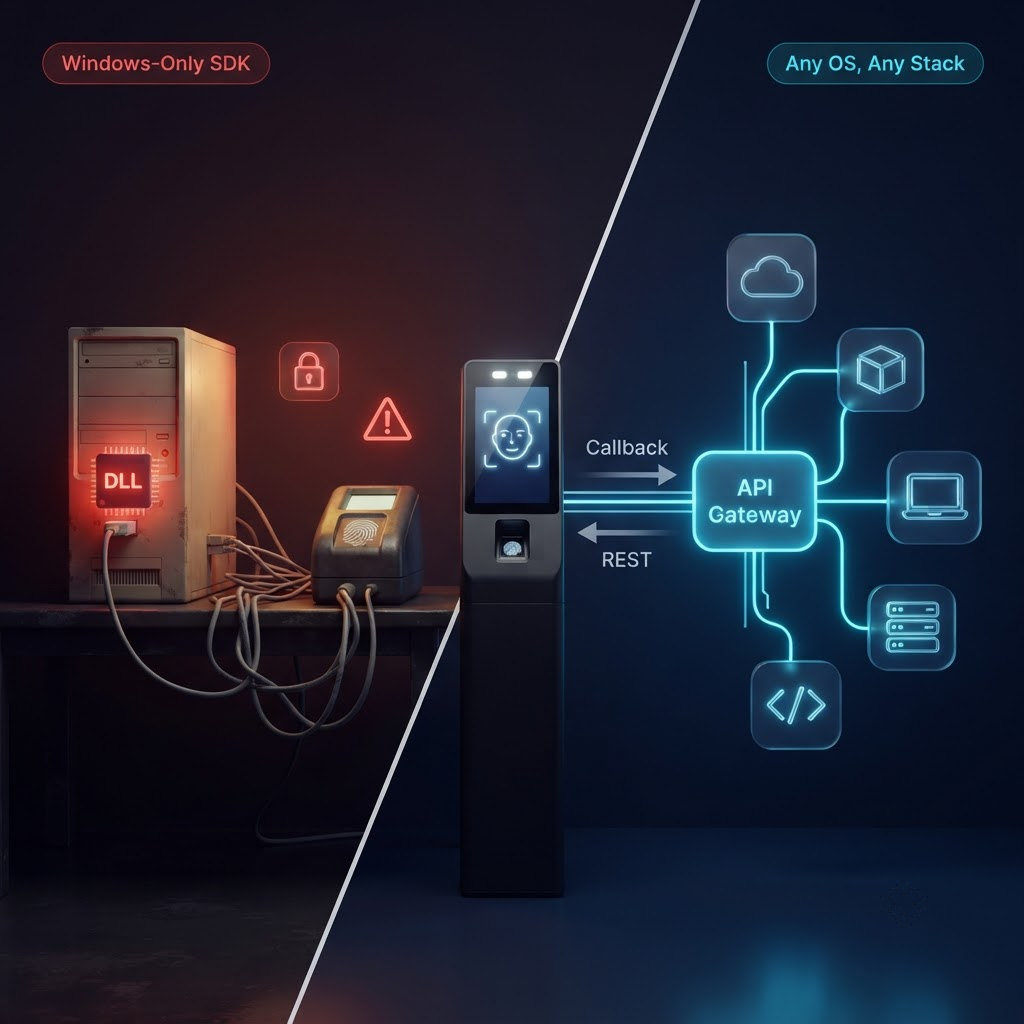
Cams Biometrics Gateway is the infrastructure layer that makes zero-touch deployment possible across 15 or more device brands through a single REST API. Your HRMS or deployment script sends JSON. The Gateway handles the concurrent device connections, the binary protocol translation, the error handling, and the audit logging. Every employee is provisioned. Every device is updated. No one touches a terminal. Explore the full API at CamsBiometrics.com or talk to our team about planning a bulk deployment for your organization.