




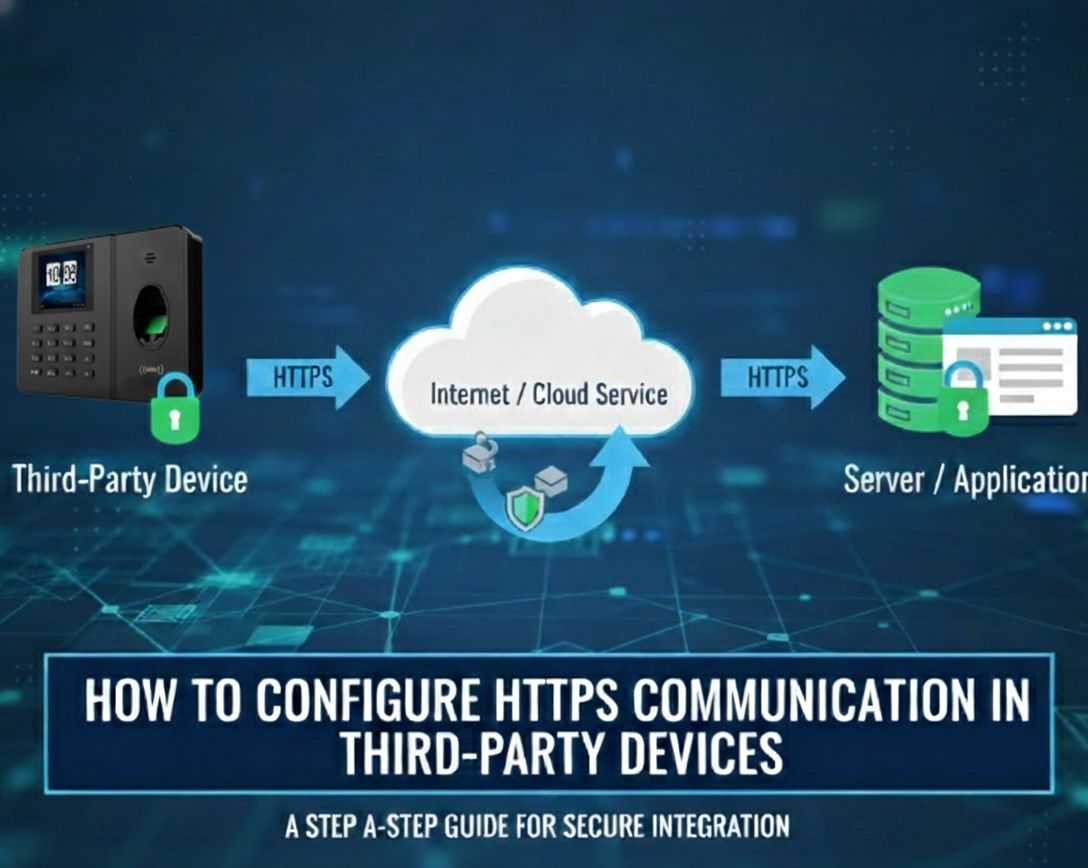
First, ensure that the device supports HTTPS by configure the vendor’s HTTPS server URL and confirm if it works properly. Then, update the server settings as described below.
✅Server configuration for an HTTPS Domain Name
Configuration Steps:
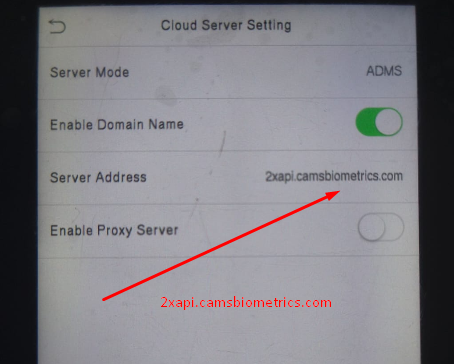
- Go to Menu > Comm >ADMS/ Server/ Cloud server settings
- Set Server Mode to ADMS.
- Set Enable Domain Name to Yes.
- Update the server address to 2xapi.camsbiometrics.com
- Set Enable Proxy Server to No.
Note: If your device has the HTTPS option, Enable HTTPS by navigate to: Menu → Comm → PC Connection or Server Settings. The port will be automatically set to 443.
✅Enabling HTTPS on Third-Party Devices That Do Not Natively Support HTTPS
If your third-party device does not support HTTPS, you will need to enable HTTPS communication by coordinating with the vendor from whom the device was purchased. The vendor is responsible for configuring the hardware to support HTTPS.
⚠️Important Note:
The above instructions apply only to third-party devices. For clients using CamsBiometrics machines, there is no need to worry about secure data communication, as CamsBiometrics devices have built-in internal encryption.