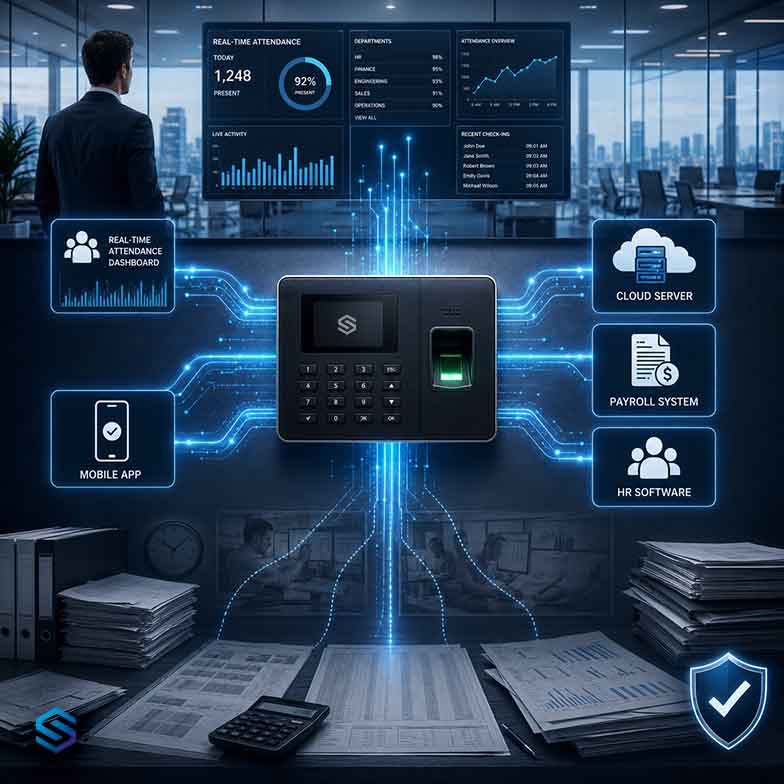





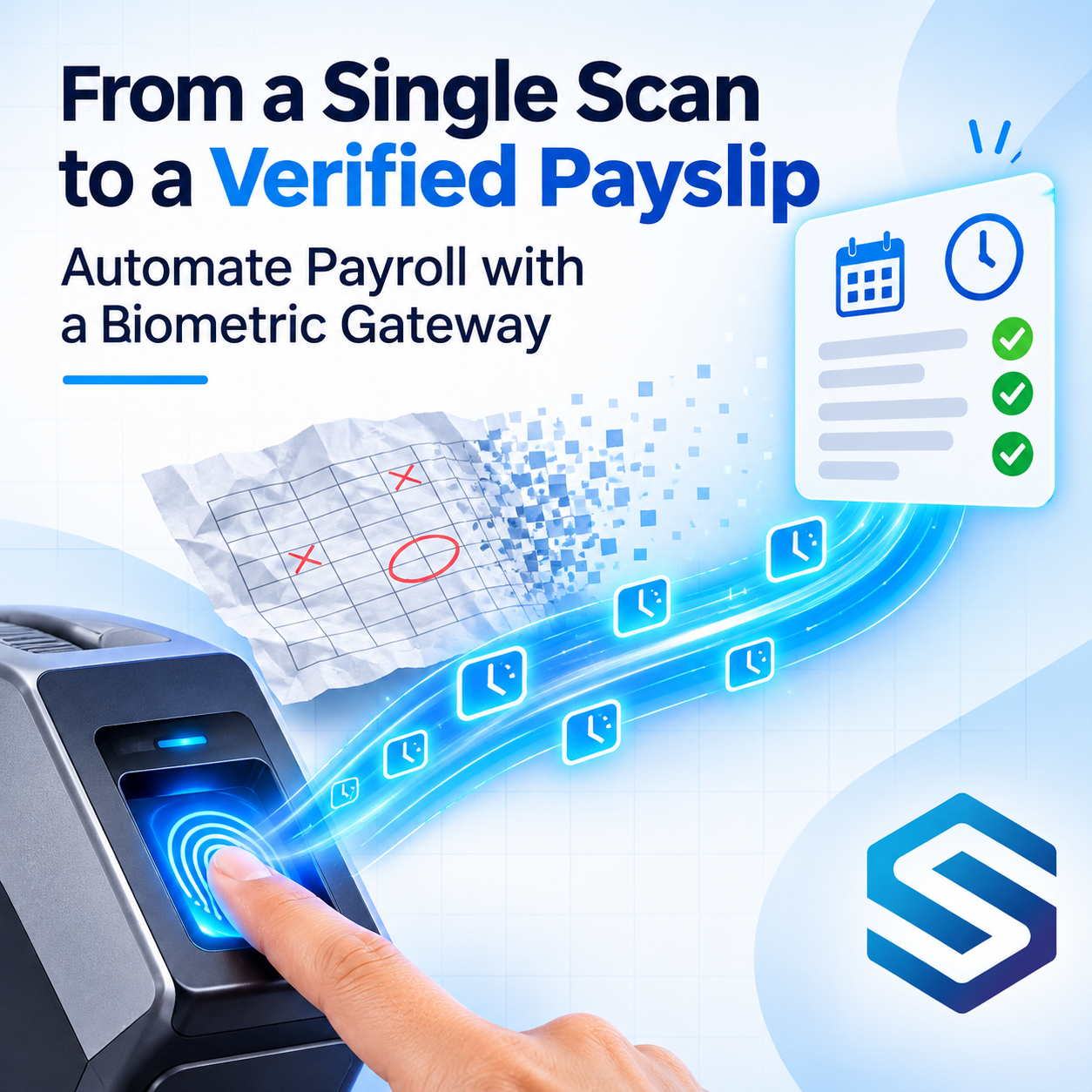
Every payroll run depends on attendance. Worked hours, late arrivals, overtime, absences, night shifts, and holiday work all start as a scan at a biometric device. Yet in many organisations, the journey from that scan to the payroll platform still involves exports, spreadsheets, copy and paste, and someone checking the numbers late at night before the payroll cut-off. Every manual step is a chance for an error that ends up on someone’s payslip. This guide explains where payroll goes wrong between the device and the payslip, what payroll actually needs from attendance data, and how Cams Biometrics connects verified punches to payroll platforms such as Razorpay and Payruler, and to the HRMS and ERP systems that run payroll for everyone else.
01 · The Manual Gap
Where Payroll Goes Wrong Before It Even Starts
Payroll platforms are very good at calculating pay. They apply salary structures, tax rules, deductions, and statutory contributions accurately and consistently. But they can only work with the attendance data they are given. If that data arrives late, incomplete, or retyped by hand, the most accurate payroll engine in the world will still produce the wrong payslip.
In a typical manual process, attendance passes through several hands between the biometric device and the payroll platform:
| Manual step | What can go wrong |
|---|---|
| Export from the device software | Wrong date range, a missed device, or a device that was offline during the export |
| Clean up in a spreadsheet | Formulas copied incorrectly, rows deleted by mistake, night shifts split across two days |
| Match device IDs to employee IDs | An employee mapped to the wrong record, or new joiners missing from the mapping |
| Calculate hours and overtime by hand | Rounding differences, overtime rules applied inconsistently between sites |
| Upload or retype into payroll | Typing errors, a file uploaded twice, or an old version uploaded by mistake |
| Rush before the cut-off | Late corrections skipped, disputes pushed to next month’s payroll |
|
Payroll errors rarely start in the payroll platform. They start in the spreadsheet between the device and the payroll platform. |
02 · From Punches to Pay
What Payroll Actually Needs From Attendance
A payroll platform does not need every individual scan. It needs a set of clear inputs for each employee and each pay period. All of them can be calculated from verified biometric punches, using the rules your HR or payroll team already uses.
| Payroll input | Calculated from | Rule set by |
|---|---|---|
| Days present and absent | Whether each employee has check-in events on each working day | Your work calendar and leave records |
| Worked hours | Paired check-in and check-out times, ordered by LogTime | Your pairing and rounding rules |
| Late arrivals and early exits | First check-in and last check-out compared with the shift | Shift timings and grace periods |
| Overtime | Worked hours beyond the contracted limit | Your overtime policy |
| Night shift allowances | Work periods that fall within night hours or cross midnight | Your allowance rules |
| Holiday and weekend work | Punches on dates marked as holidays or rest days | Your holiday calendar |
Notice the third column. Cams Biometrics Gateway delivers the verified punches. The rules that turn punches into payroll inputs belong to your HRMS, payroll platform, or attendance logic, because those rules are specific to your organisation, your contracts, and your local labour laws.
A simple weekly example
Here is how verified punches become payroll inputs for one employee in one week, using an example rule that counts hours over 40 a week as overtime. Each day includes a lunch break, recorded as a check-out and a check-in, which is not counted as worked time.
| Day | First check-in | Last check-out | Worked hours | Notes |
|---|---|---|---|---|
| Monday | 08:58 | 18:04 | 8h 32m | |
| Tuesday | 09:00 | 17:35 | 8h 05m | |
| Wednesday | 08:45 | 18:55 | 9h 40m | Stayed late for a delivery |
| Thursday | 09:25 | 17:45 | 7h 50m | Late arrival, beyond the grace period |
| Friday | 09:00 | 17:40 | 8h 10m | |
| Total | 42h 17m | 2h 17m overtime under the example rule |
That is why worked hours are shorter than the time between the first check-in and the last check-out. The payroll platform receives the summary figures, not hundreds of individual scans.
03 · Integration Paths
Two Ways to Connect Attendance to Payroll
There are two common ways to get verified biometric attendance into payroll. The right one depends on whether attendance rules live in your HRMS or directly in your payroll platform.
Path A: Through your HRMS or ERP
|
Biometric device Verified scan |
→ |
Cams Gateway Callback event in real time |
→ |
HRMS or ERP Applies shift, leave, and overtime rules |
→ |
Payroll Receives attendance summaries |
Path B: Directly to a payroll platform
|
Biometric device Verified scan |
→ |
Cams Gateway Callback event in real time |
→ |
Your receiver or automation Stores, cleans, and summarises punches |
→ |
Payroll platform Receives attendance through its API |
| Path A: Through HRMS or ERP | Path B: Directly to payroll | |
|---|---|---|
| Best when | Your HRMS or ERP already manages shifts, leave, and attendance rules | Payroll is your main HR system, or you have no separate HRMS |
| Where rules live | In the HRMS or ERP | In your receiver, automation, or the payroll platform |
| What Cams sends to | The HRMS or ERP Callback endpoint | Your callback receiver or automation tool |
| What payroll receives | Attendance summaries from the HRMS | Attendance summaries from your receiver |
|
Either way, the Callback API is the starting point In both paths, Cams Gateway pushes every verified scan to your endpoint in real time through the Callback API. What changes is which system turns those scans into payroll inputs. Nobody has to export or retype attendance data in either path. |
04 · Payroll Platforms
Razorpay, Payruler, and Beyond
Cams Biometrics works with a wide range of payroll, HRMS, and ERP platforms. Because every event arrives as standard JSON over HTTP/HTTPS, the integration approach is the same in principle for any platform that can receive attendance data through an API or an import.
| Platform type | Examples from the Cams integration list | Typical approach |
|---|---|---|
| Payroll platforms | Razorpay, Payruler | Summarised attendance sent to the payroll platform through its API or supported import method |
| HRMS platforms | OrangeHRM, BayZat, PalmHR, Zoho | Callback events written into the HRMS attendance module, which then feeds payroll |
| ERP platforms | Odoo, ERPNext, SAP, Microsoft Dynamics | Callback events written into the ERP’s attendance records, used by its payroll module |
| Automation tools | n8n, Make, Zapier | Workflows receive callback events and pass summaries on to the payroll platform |
|
Check each platform’s attendance options Each payroll platform has its own API, import formats, and rules for how attendance data can be submitted. Before building, check which attendance fields your payroll platform accepts and how it expects them to be sent. Map your summary fields to those once, and the integration runs every pay period. |
If you are building the receiver yourself, the Cams AI Code Generator Prompts can generate a complete callback receiver in Python, Node.js, PHP, and other languages, ready for you to add the payroll mapping.
05 · Step by Step
The Payroll-Ready Attendance Pipeline
Whichever path you choose, reliable payroll integration follows the same pipeline. Each step removes a source of error that manual processes leave open.
|
Capture Every scan is verified on the device by fingerprint, face, palm, card, PIN, or QR code. |
|
|
Receive Cams Gateway pushes each scan to your endpoint through the Callback API, and your endpoint replies with done. |
|
|
Store and de-duplicate Save every raw event, and ignore repeated OperationIDs so no punch is ever counted twice. |
|
|
Clean and order Sort punches by LogTime, merge accidental double scans, and pair check-ins with check-outs using consistent rules. |
|
|
Calculate Apply shift, overtime, allowance, and holiday rules to produce payroll inputs for each employee. |
|
|
Settle and lock Allow time for late events from offline devices to arrive, then lock the period before the payroll cut-off. |
|
|
Send to payroll Deliver the locked summaries to your payroll platform, directly or through your HRMS. |
|
|
Keep the audit trail Retain raw events and every correction, so any figure on a payslip can be traced back to real scans. |
|
Who does what Cams Gateway captures and delivers verified scans. Your HRMS, ERP, receiver, or automation tool applies your rules and calculates payroll inputs. Your payroll platform calculates pay. Each system does the job it is best at, and no human needs to copy attendance data between them. |
06 · Why Verified Data Matters
Trust, Disputes, and Compliance
When an employee questions their pay, the conversation is very different with verified biometric attendance. Instead of comparing a spreadsheet with someone’s memory, HR can show the exact scans behind each figure: when, where, and how the employee verified.
| Concern | How verified attendance helps |
|---|---|
| Pay disputes | Every hour on the payslip traces back to timestamped scans at a named site and device |
| Buddy punching | Biometric verification means the person who scanned is the person who is paid |
| Labour law records | Raw events and corrections give a clear record of working time for inspections |
| Data protection | Payroll receives attendance summaries, not fingerprint templates or face data |
| Security | Events travel over HTTP/HTTPS with auth token validation and optional AES-256 encryption |
|
Send payroll only what it needs Payroll platforms need worked hours, absences, overtime, and allowances. They do not need biometric data. Keeping biometric verification on the device and in the Gateway, and sending only attendance summaries with payroll platforms. |
Frequently Asked Questions
|
Does Cams Biometrics calculate payroll? No. Cams Gateway captures and delivers verified attendance events. Your HRMS, ERP, or payroll platform applies your rules and calculates pay. This keeps payroll logic in the system your team already trusts. |
|
Can we keep a manual approval step before payroll? Yes, and many organisations do. The pipeline can produce attendance summaries for HR to review and approve before they are sent to payroll. The difference is that HR reviews verified data instead of rebuilding it from exports. |
|
How are night shifts that cross midnight handled? Punches are ordered by LogTime and paired into work periods, so a check-in at 22:00 and a check-out at 06:00 the next morning form one shift. How that shift is assigned to a pay date is a rule set in your HRMS or payroll logic. |
|
What if a device is offline near the payroll cut-off? Devices keep recording scans, and the Gateway’s offline cache and queue delivers them with their original timestamps when the connection returns. Building a settling window before you lock the pay period gives late events time to arrive. |
|
Can we connect devices from several sites and brands to one payroll? Yes. Devices from more than 15 brands, across any number of sites, deliver events in the same JSON format through one Gateway account, so one integration feeds one payroll. |
Conclusion: Let the Scan Reach the Payslip on Its Own
Biometric devices already capture the most reliable attendance data an organisation has. Payroll platforms already calculate pay accurately. The weak point has always been the manual journey between them: exports, spreadsheets, retyping, and late-night corrections before the cut-off.
Connect the two directly, through your HRMS or straight to your payroll platform, and that weak point disappears. Every verified scan flows into attendance automatically, your rules turn it into payroll inputs, and every figure on every payslip can be traced back to real, verified punches.
Cams Biometrics Gateway connects the scan to the payslip. Its Callback API pushes every verified punch in real time, from devices across more than 15 brands, to Razorpay, Payruler, your HRMS, your ERP, or your automation tools, in one consistent JSON format. Offline cache and queue protects events near the cut-off, and auth token validation with optional AES-256 encryption keeps every event secure. Explore the platform at CamsBiometrics.com, read the full Web API documentation at developer.camsbiometrics.com, and generate your receiver with the AI Code Generator Prompts.